Facebook Video chat - New feature from facebook


Today in this post I will tell you how you can do video chat in Facebook. Facebook is the largest social networking website with more than 800 million users, where people connect with their old/new known/unknown friends/relatives. You post, comment, like on their wall/timeline, share pictures, videos, etc., send private massages, pokes, chat with them, etc.
Advertisement
Close to play
Advertisement
Close to play
Before to do audio-video chat you may need service like Skype, GTalk, Y! Messenger, etc. but now Facebook has partnered with Skype and brought audio-video chat into Facebook. So if you would like to have a face-to-face chat with your friends and relatives
  1. Open Facebook and login to your account
  2. Click on the person’s icon with whom you want to have face to face chat
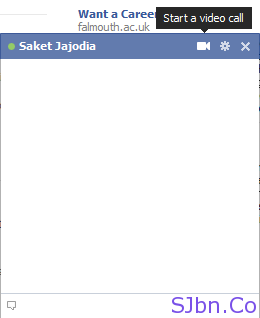
  3. Now in chat box you will see a video camera icon, click on it
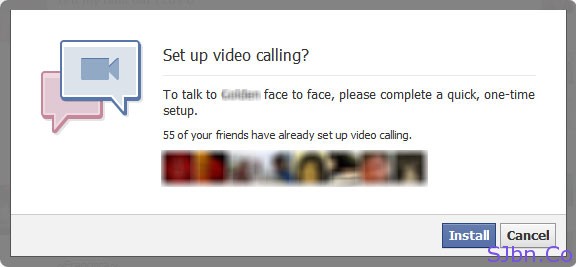
  4. Set up video calling - Install
  5. Now they will ask you to install a software in your computer click on Install button
  6. Start a video call
  7. Now a software will get download in your computer, after download complete install it in your computer
  8. After that software get installed, again click on that video camera icon
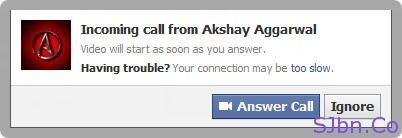
Now if that person also has this software installed in his/her PC then he/she will receive a call from you on Facebook.
Incoming call - Answer Call
Or will be asked to install it.
Incoming call – Install Video Calling

What Is Copyright And Creative Commons, In Plain English

Most of us don’t know what exactly copyrights and creative commons means and also most of us are not aware of what can happen if we violate any copyright law. As someone creates something by default they become the copyright holder of that particular stuff.
Common Craft team came up with one more video explaining Copyright and Creative Commons in plain English. They are taking photography as an example to explain Copyright and Creative Commons.


If you are my daily reader then you must have noticed that in some of my post I add a credit, via, thanks to, etc. I add this because I like give credits to my sources and original creators and I also like to follow Copyright and Creative Commons license closely.

Google Earth now shows you real time Weather updates

Hi! Everyone, hope you all are fine.In this post I will tell you how you can see the real-time weather updates in Google Earth. In the latest version of Google Earth 5.2 you can able to view the real-time rain and snow in the certain part of the world.


hurricane+texas
Just by enabling the cloud layer by going to the layers panel (see in 3rd image of the post) and now zoom it to the location where it’s raining or snowing. Currently Google Earth displays some area in North America and Europe. And to see where actually the rain and snow new feature displays, just enable the radar layer by going to the layers panel (see in 3rd image of the post).


Layers

How to verify your blogger blog in Google webmaster tools

In this post I will tell you how you can verify your Blogger.com blog in Google Webmaster Tools. Google Webmaster Tools will help you is Optimizing your blog for SEO in Google Search.


Verify Blogger.com blog in Google Webmaster Tools

  1. Go to Google.com/webmasters/tools/home
  1. Login to (or signup for) your Google account (you can use your Blogger.com ID and Password to login)
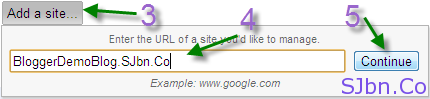
  1. Click on Add a site… button
  1. Type your Blogger Blog URL
  1. Then click on Continue button
    Add a site... button
  1. Now you need to verify (that you are the owner of that blog)
  • If you are using same account in Google Webmaster Tools that you are using in your Blogger.com blog then you don’t need to verify
  • If you are using different account then
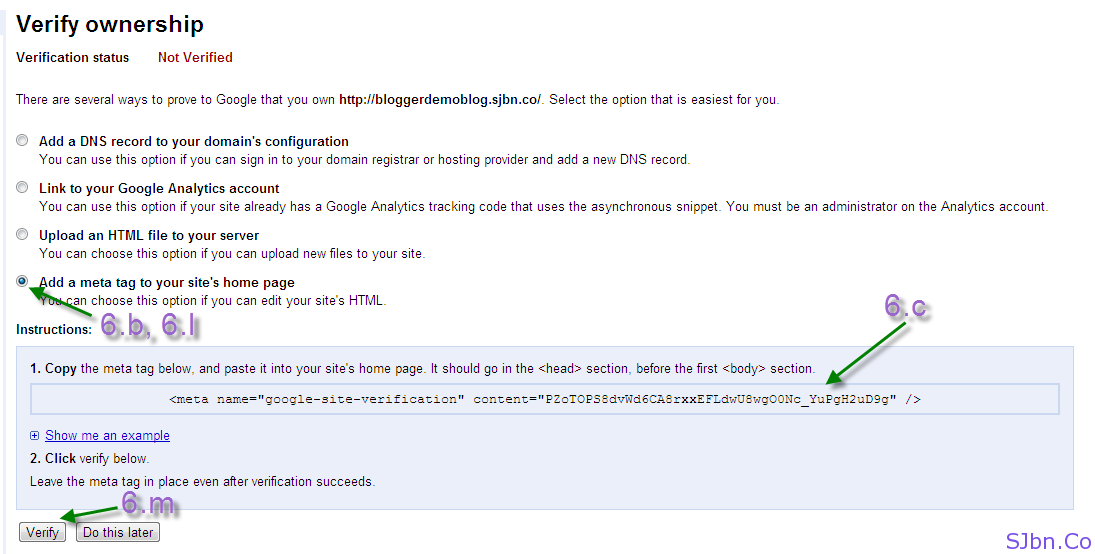
(b)  Select Add a meta tag to your site’s home page radio button
(c)  Now you will see a META tag copy that META tag
(d)  Now go to Blogger.com login to your account
(e)  Then go to Design –> Edit HTML (following blog in which you want to verify)
(f)  Search for <head>
(g)  Just below HEAD tag (<head>) past the META tag you have copied from Google Webmaster Tools page
(h)  Click on SAVE TEMPLATE button
(i)  Now again go to Google.com/webmasters/tools/ login to your Google Webmaster Tools account
(j)  If you can’t see your blog, you see something written like this
(l)  Then again select Add a meta tag to your site’s home page radio button
(m)  Then click on Verify button


Verify ownership


Let see how you can verify your Blogger.com blog in Google Webmaster Tools or as example for Sarkari Naukri
(a)  After adding your blog URL you will see some option to verify
Use the table below to manage verified owners of your sites or add new sites to your account. Additional information about your verified sites is available at Webmaster Tools.
Click on Webmaster Tools link
(k)  Now click on Verify this site button (at the right-hand side)
Now you Blogger.com blog is verified for Google Webmaster Tools. Government Jobs

World's cheapest tablet 7 " pc

In this post I will tell you about the new Tablet PC from the Indian Institute of Science, Bangaluru, IIT Kanpur, IIT Kharagpur, IIT Madras and IIT Mumbai have co-developed the`1,500 (32 US$ approx) Tablet PC, unveiled by Ministry of Human Resource Development (HRD)Kapil Sibal. The world’s cheapest Tablet PC. This Tablet PC is for students (both school and college), manufacturing will start in 2011. Now it might just cost `1,500 but in starting next year the government wants to sell it to the Indian students at price of `
500. Can you imagine it can be chipper then a cell phone.
The name of the device is Sakshat.
§The device size (5in. in width and 10in. in height) is probably same as an iPad size.
§  Single unit touch screen
§  2 GB of Memory using Memory card and can be extend with 32 GB using external device
§  256 MB of RAM
§  Wi-Fi enabled
§  Fixed Ethernet capability
§  Linux based Operating System (OS)
§  USB port
§  PDF reader
§  Camera for video conference
§  Multi connect viewer
§  Multimedia input/output (I/O) interface option
§  Siclab
§  Media player
And so on. It only needs 2 watts power to get charge, It also has an option of solar power and it use
23sibal1


Advertisement


Close to play
Advertisement


Close to play
Advertisement


Close to play

Be careful from Facebook Scam - Must Read Article

 In this post I am going to inform you about the scamming in/through facebook. You must have show, such post posted by your friends or by you yourself in facebook…
1. OMG OMG OMG… I can’t believe this actually works! Now you really can see who views your profile!!! WOAH –>


Few e.g.:-

2. OMG!! Justin Biebers Ex GIRLFRIEND just RELEASED his new CELL PHONE NUMBER!!

3. OMG!! Guys, you have to see this: This mother went to jail for taking this pic of her son! --->

There are many sites, applications and facebook page which are scam by scammers. Like the 1st e.g. (OMG OMG OMG… I can’t believe this actually works! Now you really can see who views your profile!!! WOAH –>facebook don’t have any such things by which users or anyone can get to know about the information of who have visited your profile. There are millions of people got trapped (including you).
When you go to any such page, you will see they will 1st ask you to click on like button on their page.Then they will ask you to share given massage on facebook many times in different places then only you will able to access to the application (by which you are helping them to spreadthe scam to your friends and through that to their friends), then you might be taken to the page where they asked you to complete a facebook (fake) survey, in that survey you will be asked to give your personal information e.g.: your phone no., your address and so on. Which can bemisuse and also they earn from that.
So, if you find any such site or page report it immediately to the facebook. And be careful from all this scammer’s sites and also be sure that you are giving your personal information only to reliable sites after conforming weather the site is secure.

How To Increase Your Internet Speed.

Every computer has their own IP address by which they can interact with another computer or web server. IP address is made from combinations numbers. For computers, IP address are easy to understand and remember but human brains are not good at that, so for humans we have website address like Google.com, Yahoo.com, Bing.com, etc. which is easy for us to remember.


Faster Internet Speed


Now that’s where DNS server take place, DNS a.k.a. Domain Name System. When we open a website our computer sends a request to DNS server and it convert the human-friendly web address (e.g.: example.com) to computer-friendly IP address (e.g.: 16.7.19.92). Once it done computer open that website for you.
Every ISP (Internet Service Provider) provide DNS server but most of them are very slow which increases loading time of a website. So to solve this problem there few DNS service provider (like: OpenDNS and Google DNS) which speedup our internet speed and resolve few other problems without installing anything or paying any kind of cost.
DNS provided by your ISP generally don’t have cache all IP address, if they don’t find IP address on one DNS server they send request to another server and so. Most of the time there DNS server take a lot time to response. Don’t filter your request of malware websites.

OpenDNS


OpenDNS have cache all IP address of all websites, they don’t need to send request to another server. There server response time is very fast.
They don’t let you open any malware websites which can harm your computer. Of you computer got any virus, malware, etc. which send your date to someone else online then OpenDNS won’t let that malware connect with their server.
It will correct your typos, for instance if you type wikipedia.or, it will automatically redirect you to wikipedia.org (may not work with browsers which have inbuilt search engine a.k.a. omnibox, e.g.: Google Chrome).
All you need to do is configure your DNS on your computer or router with below addresses.
208.67.222.222
208.67.220.220

Using OpenDNS FamilyShield you can easily block content which are NSFW with below addresses.
208.67.222.123
208.67.220.123

GoogleDNS


also provides almost everything what OpenDNS provide, there are few things which GoogleDNS not provide but OpenDNS do for instance GoogleDNS won’t correct your typos. But GoogleDNS is also worth using, here are the addresses of GoogleDNS to configure.
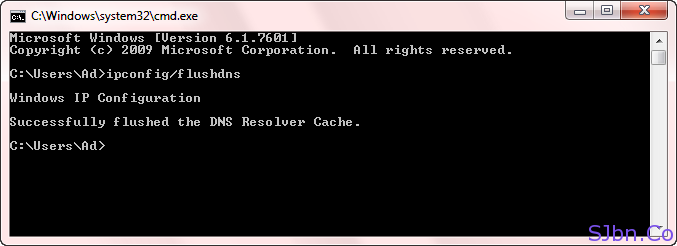
After you configure your OpenDNS or GoogleDNS, open your CMD dialog box and type ipconfig/flushdns, it will clear all your DNS cache from your computer. To open CMD dialog box press Windows key + R, type CMD and press Enter or OK button.
CMD dialog box - flushdns

How to submit your blog sitemap to blogger.com

Hi! Everyone, hope you all are fine.
Today in this post I will tell you how you can submit sitemap for your Blogger.com blog in Google Webmaster Tools. In my previous post I told you how you can verify your Blogger.com blog in Google Webmaster Tools. Now when you have verified your Google Webmaster Tools you need to submit sitemap so Google can index all your blog links.


Verify Blogger.com blog in Google Webmaster Tools

  1. Go to Google.com/webmasters/tools/home
  1. Login to your account
  1. Click on your blog name
  1. Then click on Submit a Sitemap link at the right-bottom of the page
  1. There you will see a Submit a Sitemap button click on it
  1. And type the following and click on Submit Sitemap button
If you have more than 500 blog then change the 1 (after index=) to 501 (now it will look like thisatom.xml?redirect=false&start-index=501&max-results=500) then again copy-past and submit it
    Submit Blogger.com Blog Sitemap
atom.xml?redirect=false&start-index=501&max-results=500
atom.xml?redirect=false&start-index=1001&max-results=500
atom.xml?redirect=false&start-index=1501&max-results=500
atom.xml?redirect=false&start-index=2001&max-results=500

  1. Now you will see something like this
    Submited Blogger.com Blog Sitemap To Google Webmaster Tools


So let see how you can submit sitemap for your Blogger.com blog
    atom.xml?redirect=false&start-index=1&max-results=500
    Now Google will index your recent 500 blog post
    Now it will index your next 500 blog post, like this you have to do it
    Suppose you have 2000+ blog post then you need to submit each line one by one
    atom.xml?redirect=false&start-index=1&max-results=500
If your sitemap status change to green that means your sitemap is successfully submitted to Google for indexing, but if it get change to red instead of green then check the text whether you have copy-past or typed it correctly or not (there should be no blank SPACE). Even you can check it by typing anyone of those lines after your blog URL in your Web Browser address bar.
If you have any question or problem let me know.

How to create a free Blog using Blogger.com with free unlimited hosting.

In this post we will discuss on how to create blog using blogger.com which is owned by Google Inc., it’s free, easy to use and for starters this is the best way to start with.To do so you need to sign up/sign in to blogger.com
1.       For Sign Up users.To sign up click here or go to blogger.com then click on CREAT A BLOG (for those who are already using any Google service they can sign in directly, no sign up required to sing in got to 
2.i)      Then fill the form accordingly and click on CONTINUE.


ii)       Now you will see they asked you to fill another form where you will be asked to type related to your blog you want to start.
(1)    In 1st box type the name of your blog.
(2)    In 2nd box type the subdomain (subdomain is the address of your blog by which your visitors will visit your blog) you want. Before going to next step check that your subdomain is available or not by clicking on Check Availability.
(3)    In 3rd box fill the word verification.
(4)    Then click on CONTINUE.


iii)     Now choose the template (template is how your blog will look) you want for your blog. Then click on CONTINUE. (You can customize or change it any time you want just by going to Dashboard -> Design -> Template DesignerClick here to know how it works.)


iv)     Now you will see few options

(1)    Start posting nowBy clicking this you can start your posting, what you want to post on your blog.
(2)    Customize how your blog looksBy clicking this you can change your template looks there you will get lots of choose by which you can customize your template (your blog looks) to know how it works Click here.
(3)    START BLOGGINGBy clicking this you can start your posting, what you want to post on your blog.
(4)    Advanced Setup Options
(a)    Set Up a Custom Domain"margin-left: 1.0in;">Custom domain is your own domain (for e.g.:  example.com or blog.example.com) where you can “buy a new domain” or “use your existing domain”.
1.      To buy new custom domain1.       To buy Click on Set Up Custom Domain or Go to: – Dashboard -> Settings -> Publishing -> there you will see written Switch to: • Custom Domain, click on Custom Domain.
2.       Now chose the domain name you want. And fill the word verification box.
3.       Now click on CHECK AVAILABILITY.
4.       You will see a Google page where it will be written example.com is available or example.com is already registered (If it’s already registered then chose the other domain). Then click onContinue to registration.
5.       Now fill the form accordingly and don’t forget to read and tick theGoDaddy.com Universal Terms of Service and Google Apps Standard Edition Agreement. If you don’t agree with theirAgreement then you can’t have a custom domain from them.
6.       Now click on I accept. Proceed to Google Checkout » (click only if you accept the Agreement).


7.       Now you will see the Google checkout page where they will ask you to add Credit Card details (before giving the credit card details please check it that the link should be something like this {https://checkout.google.com/view/buy ?o=shoppingcart&shoppingcart;=xxxxx} )They will ask Credit Card details if you have “never added it before” or “it got expired”.
8.       Now go through the following steps as they tell and read everything carefully.
9.       Best of luck.(ii)    To use your existing domain
a.       To use your existing domain you need to create or change your existing CNAME record.
b.       Click here to see the details how you can make or change it.
c.       After doing setting the CNAME record, Click on Set Up Custom Domain or Go to: – Dashboard -> Settings -> PublishingThere you will see its written Switch to: • Custom Domain, click on Custom Domain -> then there you will see its written Already own a domain? Switch to advanced settings, click on Switch to advanced settings.
4.       In 1st box type the name of your existing domain (example.com or blog.example.com).
5.       In 2nd option select the Yes or No as per your suitability (No is recommended).
6.       In 3rd box fill the word verification.
7.       Now click on SAVE SETTINGS.
8.       Within few minutes your blog will appear in your own costume domain.(b)   Import Blog ToolImport blog help in importing your old blogger blog posts in to your new blogger blog. Here are the steps how to do it:-
(i)      1st go to the blogger dashboard were you have your old blog which you want to move to the new one.
(ii)    Then go to the settings of the following blog (the old one which you want to movie to new).
(iii)   There you will see its written Export blog click on there.
(iv)  Now you will redirect to a page where you can see its writtenDOWNLOAD BOLG click on it (now you will get an .XML file which will get downloaded after clicking on DOWNLOAD BOLG).
(v)    After saving that file in to your computer go to the blogger dashboardwhere you have your new blog, now go the settings of that new blog there you will see its written Import blog click on it.
(vi)  Now there you can see you have an file upload option now locate and select that .XML file (which you have downloaded from your old blog) then fill the verification box, now if you want to directly publish all your old post then tick the Automatically publish all imported posts, and if you don’t want to publish it directly just want to save it in your post draft then uncheck it.
(vii) Now click on IMPORT BLOG.
(viii) Now all your blog’s postscomments and static pages are imported to your new blog.2.       For Sign In users.To sign in go to Blogger.com give your ID and Password.ii)       After signing in Click here or go to Blogger Dashboard, there you will see its writtenCreate a Blog click on there.


iii)     Now you will see they have asked you to fill the form to relate to you blog details.Go to Step:  1. > ii) > (1) and follow everything till 
Step1. > iv) > (4) > (b) > (viii)Tips:1. While posting don’t switch to HTML to Compose if you are creating throughHTML. And ifyou are creating through Compose then don’t switch to Compose to HTML. You can use PREVIEW button (to view how it’s looking in your blog before posting) at the bottom beside PUBLISH button.
2. Always take a backup of your template before doing any change in your template, do any customizations in template or do any kind of changes in HTML of your blog template. To take backup your template go to Dashboard > DesignEdit HTML there you will see its written Download Full Template click on it you will get an .XML file save it (that’s the backup file of your template). And also copy the entire HTML Gadget/text Gadget in a note pad of your computer. To copy the Gadget go to Dashboard > Design from there you can copy the Gadget content and also add some Gadget to your blog.